
Free WooCommerce Conversion Tracking Plugin for Meta, GA4 & GTM
See every event your store sends, and why it failed.
PixLedger sends your events to Meta Pixel, GA4 and Google Tag Manager, and records each one in your own WordPress admin: what was sent, what failed, and what consent blocked.
Free on WordPress.org · Works with or without WooCommerce
Works with
Meta Pixel
Google Analytics 4
Google Tag Manager
WooCommerce
Consent Mode v2
Your ad platform says one thing. Your orders say another.
When tracking breaks, nothing tells you. Events just go missing, and your campaign data quietly drifts away from reality.
Blocked in the browser
Ad blockers and browser privacy settings can stop a pixel from loading, and you never see an error.
Held back by consent
If a visitor has not agreed, events should not fire. But which ones were held back, and why?
Doubled or missing tags
Another plugin or a theme can already load the same pixel. Now you count twice, or not at all.
What you get
A ledger for every conversion event.
PixLedger writes each event to a local log the moment it is dispatched, so you can check your tracking instead of guessing.
Event Log
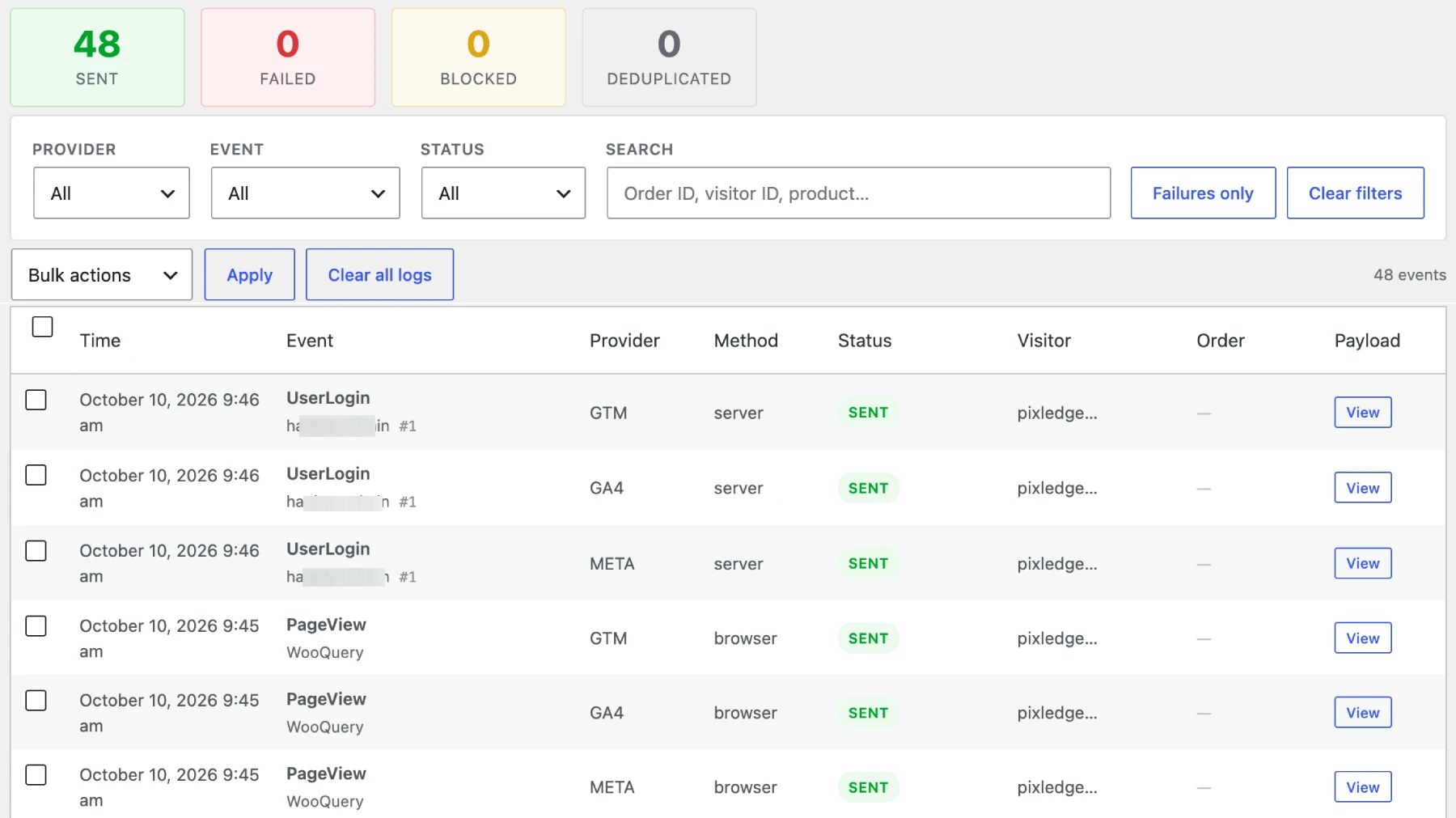
Every event, one row per provider.
Open the Event Log in your WordPress admin and see exactly what your store sent to Meta, GA4 and GTM, in order.
- Event name, object title, provider and delivery method
- Order ID (when there is one) and a shortened visitor ID
- Expand any row to read the full payload as JSON
Reasons
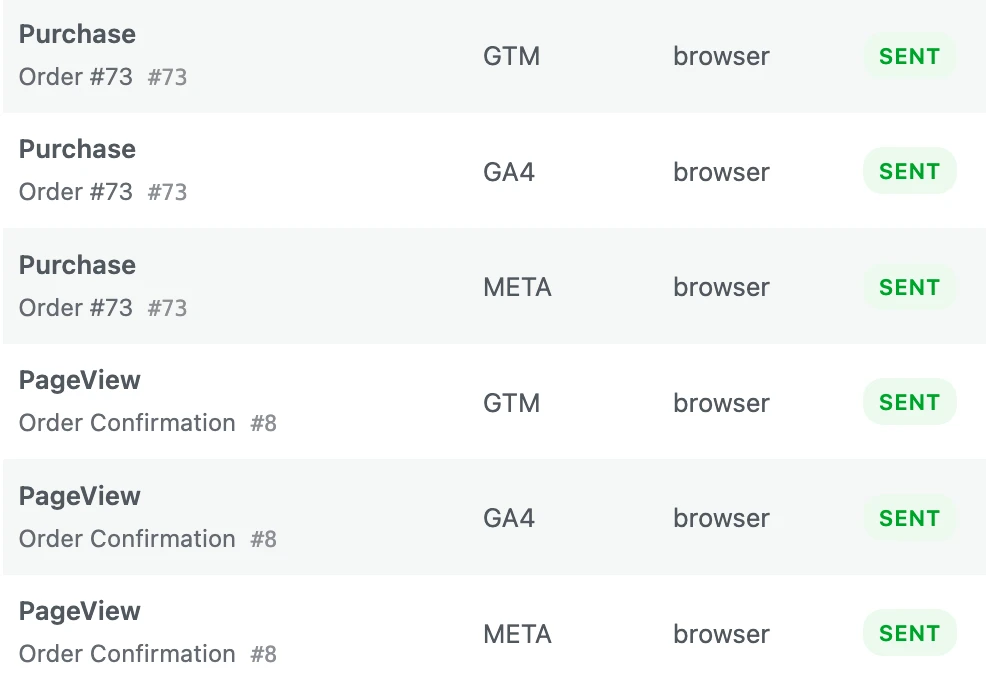
Know why an event failed or was blocked.
Each row carries a status and, when something went wrong, the reason. No more guessing whether it was consent, a provider error or a missing setup.
- Statuses: sent, failed, blocked by consent, no provider, deduplicated
- Hover a failed or blocked status badge to read the reason
- Blocked events name the consent category that denied them
Filters
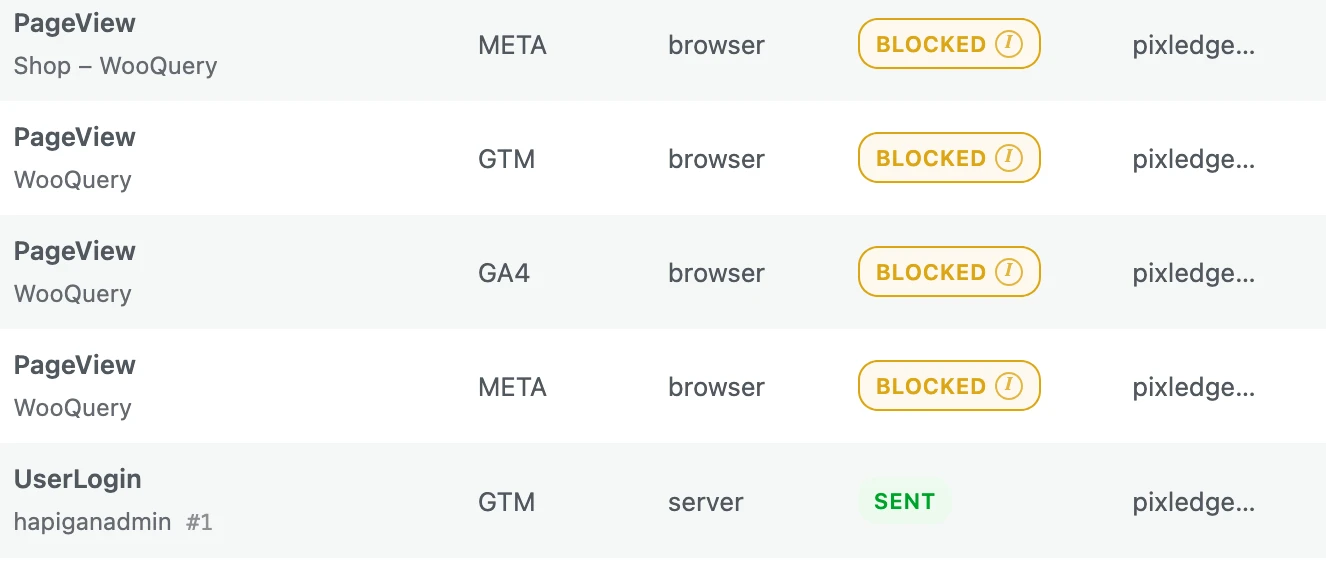
Find what broke in seconds.
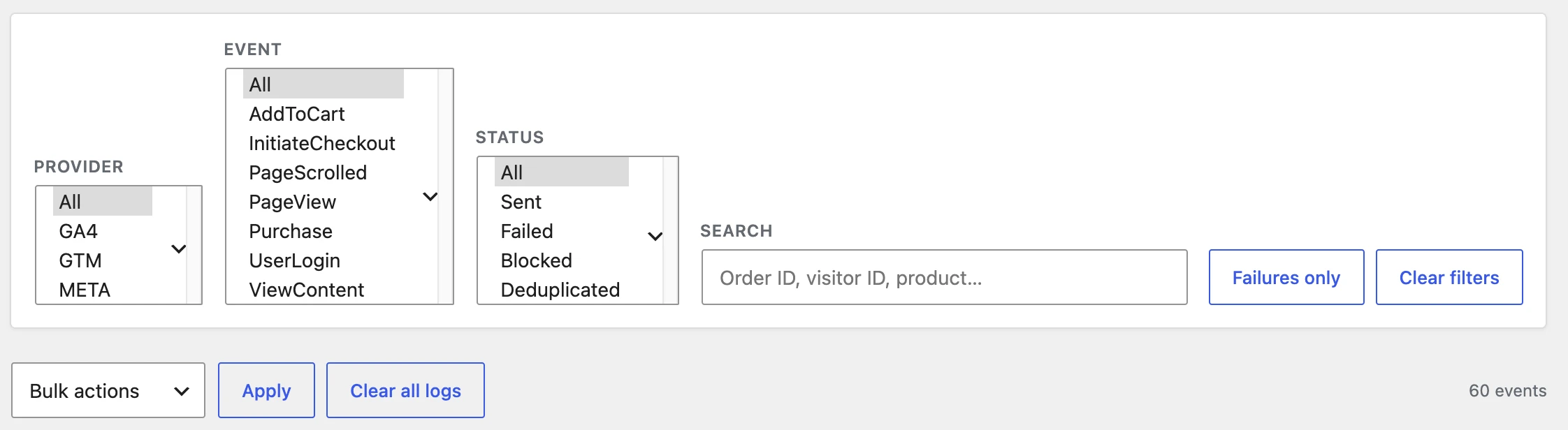
Filter by provider, event or status, search by event, product or visitor ID, or jump straight to failures only.
- Combine filters and clear them with one click
- Failures-only quick filter
- Auto-refreshes every 10 seconds while the tab is open
Privacy
Your tracking log stays in your own database.
The Event Log lives in your WordPress database, not on our servers. PixLedger has no account to create and no dashboard to log into elsewhere.
Consent Mode v2
Turn on Consent Mode and PixLedger checks the visitor’s choice before an event is sent. Set the defaults for analytics_storage, ad_storage, ad_user_data and ad_personalization in one settings screen.
Anonymous visitor ID
Events are tied together by a random 90-day cookie, not by a name or an email address. It shows as a shortened ID in the log.
Hashed customer email
Customer email addresses are stored SHA-256 hashed in the log, not in plain text.
You decide how long
Events are kept for 7 days by default. Choose a different retention period in the settings.
sent
failed
blocked_consent
no_provider
deduplicated
Events
More than 20 built-in events, ready to switch on.
Turn events on or off one by one. Anything not covered, you can send yourself.
WooCommerce
ViewContent, AddToCart, RemoveFromCart, CartView, InitiateCheckout, AddPaymentInfo, AddShippingInfo, CouponApplied, Purchase, OrderRefunded, ProductReview
Clicks and forms
OutboundLinkClick, PhoneClick, EmailClick, DownloadClick, FormSubmit
Pages and search
PageView, NotFound404, PageScrolled, SearchPerformed, SearchEmpty
Accounts and content
UserLogin, UserRegister, CommentPosted
Custom events
Add data-pxl-event=”EventName” to any element, or call pxl(‘track’, ‘EventName’, { … }) from your own code.
Questions, answered.
Do I need WooCommerce?
No. PixLedger works on any WordPress site. The WooCommerce events load only when WooCommerce is active.
Does it send events from the server?
Not in the free version. Events are sent from the visitor’s browser, so ad blockers can still stop delivery. PixLedger shows you what it dispatched. Server-side delivery is planned for a Pro version.
What if I already have a Meta, GA4 or GTM tag?
PixLedger detects common tracking plugins and an existing Meta Pixel or GTM container on the page and skips loading a second copy. A notice in the settings tells you what it found.
How long are events kept?
7 days by default. You can change the retention period in the settings.
Does it replace my cookie banner?
No. You still need a consent banner. Consent Mode is off by default; when you switch it on, your banner has to pass the visitor’s choice to PixLedger through its consent cookie or a filter.
Is it really free?
Yes. PixLedger is free on WordPress.org.
Find out what your store is really sending.
Install PixLedger, connect your pixels, and open the Event Log.